
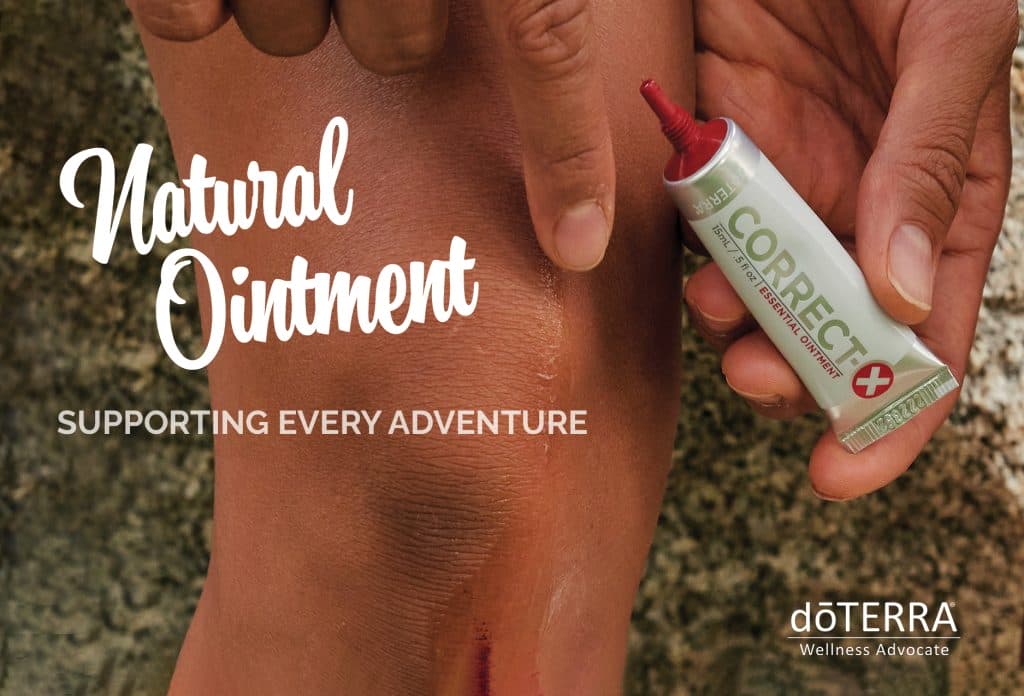
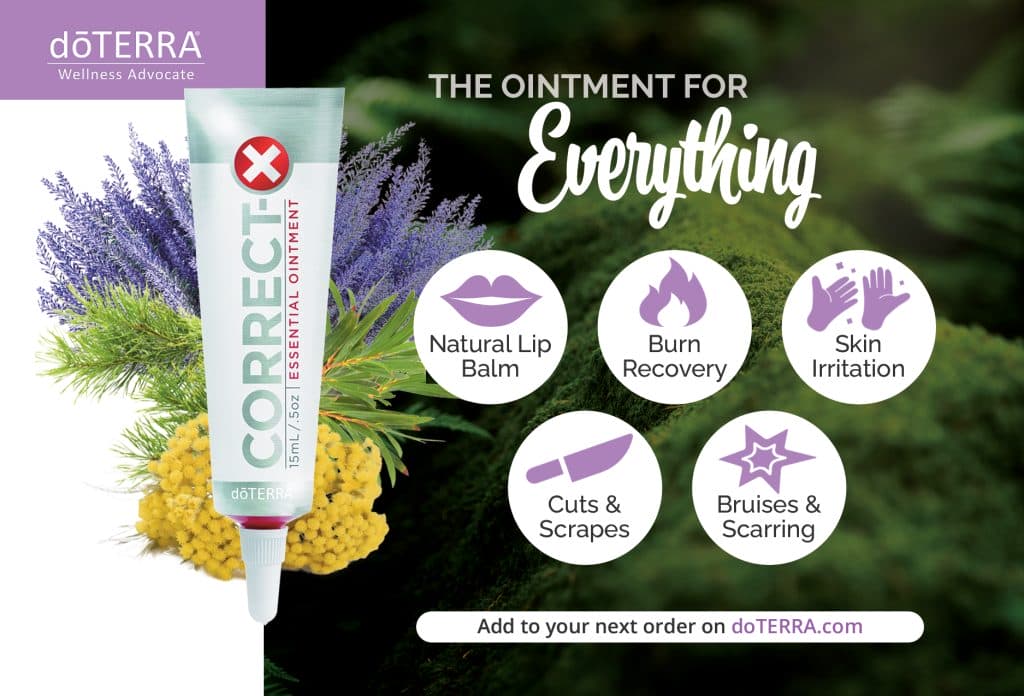
What’s Next?
1. Add Samples (optional)
We made our own Correct X Samples. We purchased little sample packs, such as what you might put toothpaste samples in, and then squeezed a portion of CorrectX into each one. We sealed them, then added the below label to the sample. One tube of Correct X makes about 40 samples.

2. Print & Mail Postcard
If you’d like to mail it out to your customers, simply print the files as a 4×6 Postcard and then mail them in an envelope slightly larger than that size OR you can add an address sticker onto the front and mail it as a postcard.
3. Resource Links
I used this size envelope to mail the card and sample in:
https://www.uline.ca/Product/Detail/S-12806/Paper-Office-Envelopes/A7-Gummed-Announcement-Envelopes-5-1-4-x-7-1-4
These are the foil pouches I used:
https://www.amazon.ca/gp/product/B0B9SDLC2G/ref=ppx_yo_dt_b_search_asin_title?ie=UTF8&th=1