
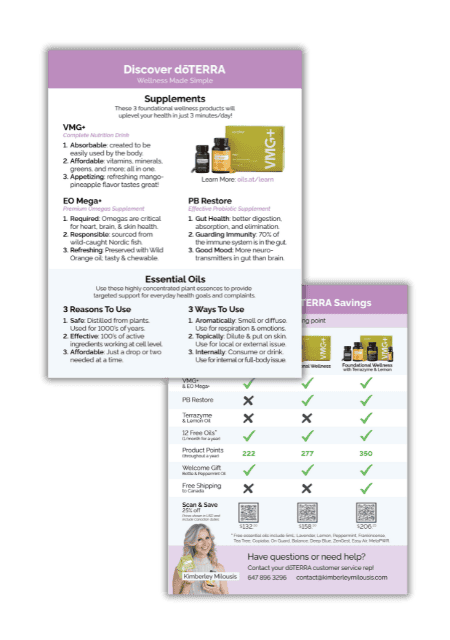
How to Customize the Discover doTERRA Handout
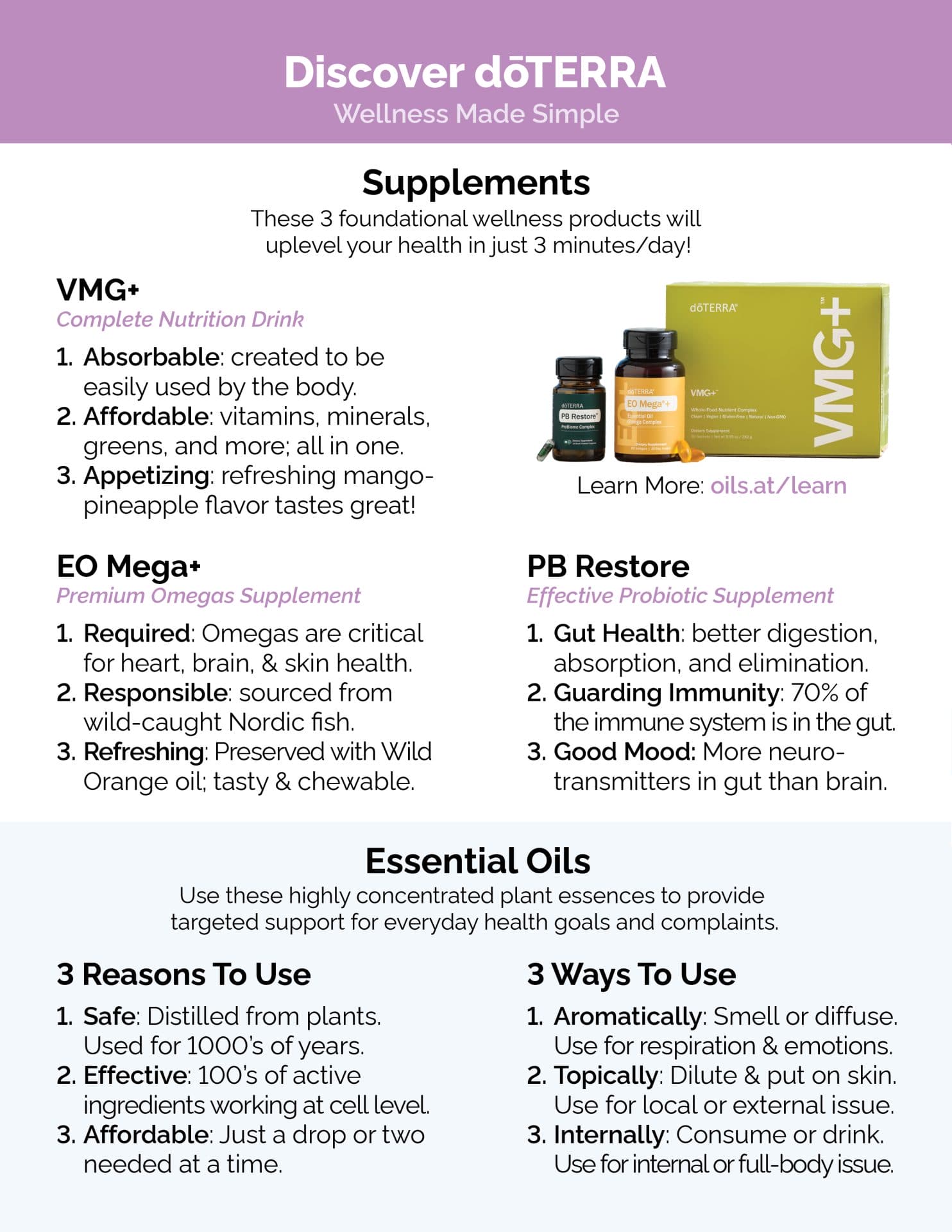
The FRONT only has one option for this handout.
If you’d like to make any changes to this handout you have a few options. You can use a(n):
- PDF Editor – Edit the webpage details with a PDF editor like Adobe Acrobat.
- Image Editor – Open the file in an image editor and update the address. You can use Canva or another simple image editing software.
Alternatively, Vistaprint allows you to add images during the printing setup process.
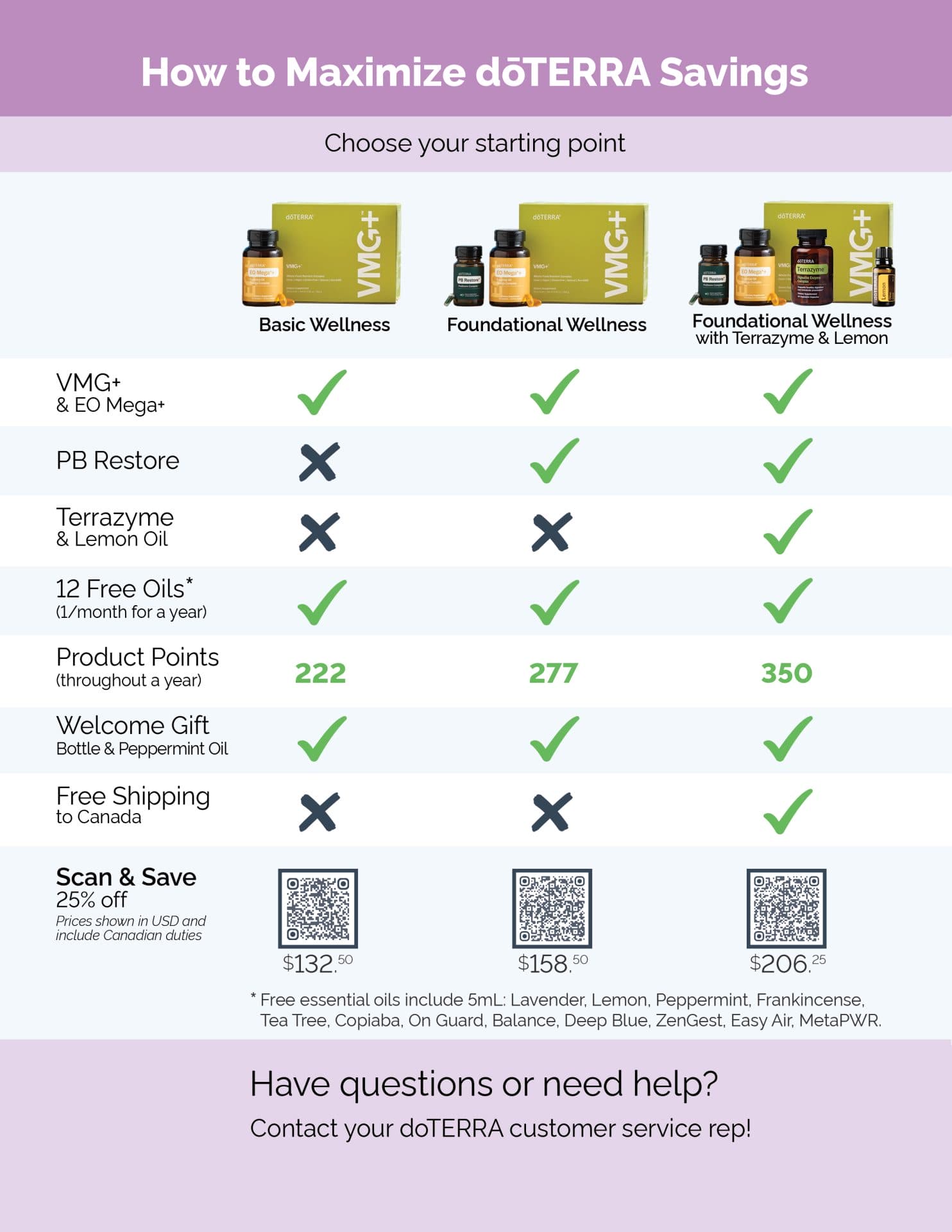
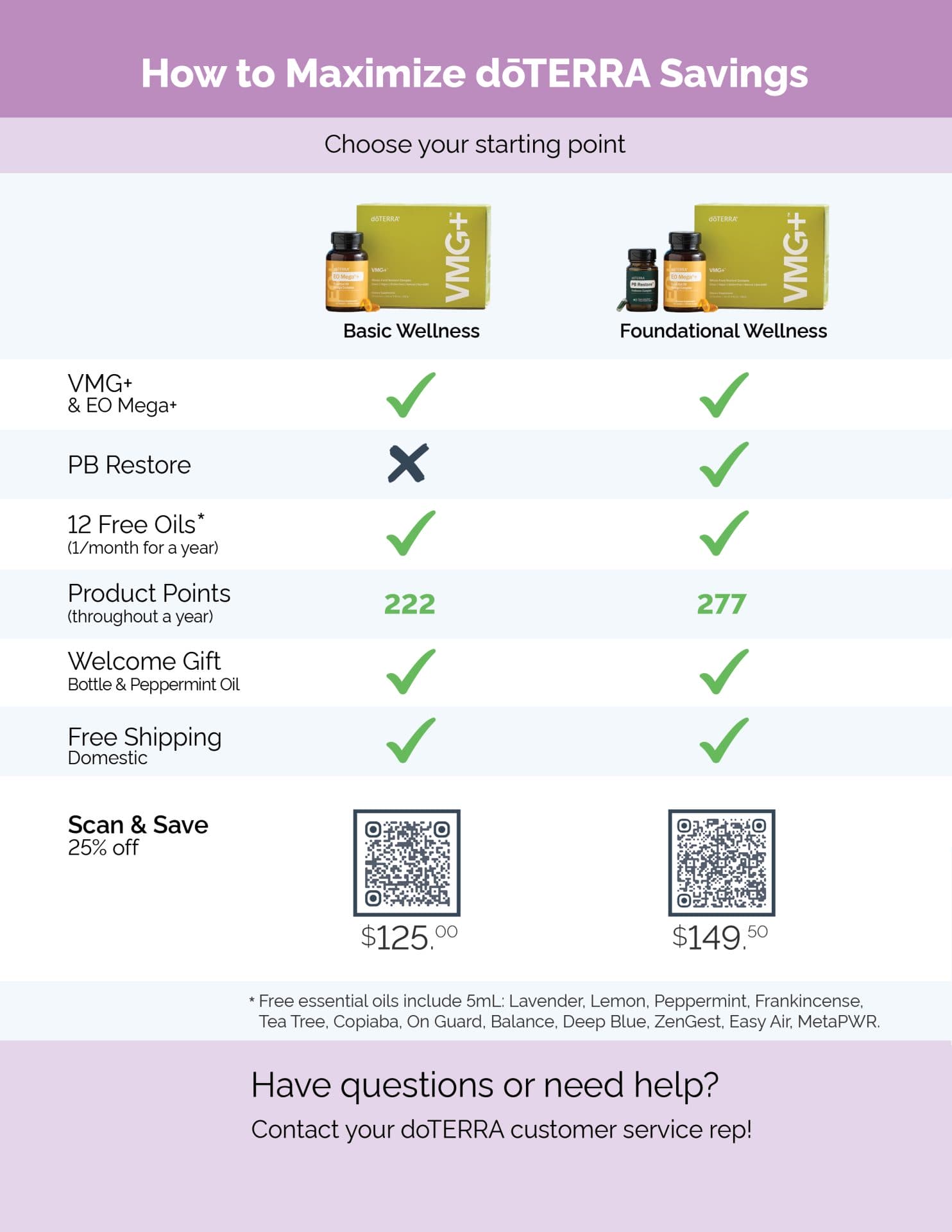
For the BACK, there are two versions of this handout: one for Canadian customers and one for US customers.
The Canadian version includes a third option for free shipping to Canada. See the ‘Shipping’ and ‘Scan & Save’ for more details.
Step-By-Step Guide
Here’s a step-by-step guide to setting up and sending out this handout.
1. Download the designs in the folder. See instructions in order to download zip files here.
2. Customize the design using a PDF Editor or Image Editor, noted above.
- FRONT: Ready to use as is! However, you can update the landing page link to your own.
- BACK: Update both the Scan & Save (QR codes) and contact information sections.
Add your QR code in the designated area. I use Adobe QR code generator to make my QR code. See ‘How to add a QR code to your handout‘ video below.
Use the blank space at the bottom left to add an image of yourself, your name, and contact details. See examples in the folder.
2. Print this design on a 8.5 x 11 letter-sized paper using a printing service like Staples (CAD | US) or Vistaprint. Note: You can have the handouts pre-folded for a fee.
3. Order envelopes for folded letter size paper. Uline, Amazon, Staples (CAD | US) often have good prices.
Once all your supplies arrive, continue to step 4.
4. Place the folded handout in the envelope.
5. To mail it out to your customers, put these handouts into envelopes. We purchased ours from Uline.
How to add a QR code to your handout
Click the link to watch a video guide:
https://share.vidyard.com/watch/UPB5rty7GdnikWMjqrXzbe?
How to edit and print handouts
Note: This video shows adding a QR code to a postcard, however the process is the same for this handout.